Smart SIM Registration OTP Not Received: 7 Fixes
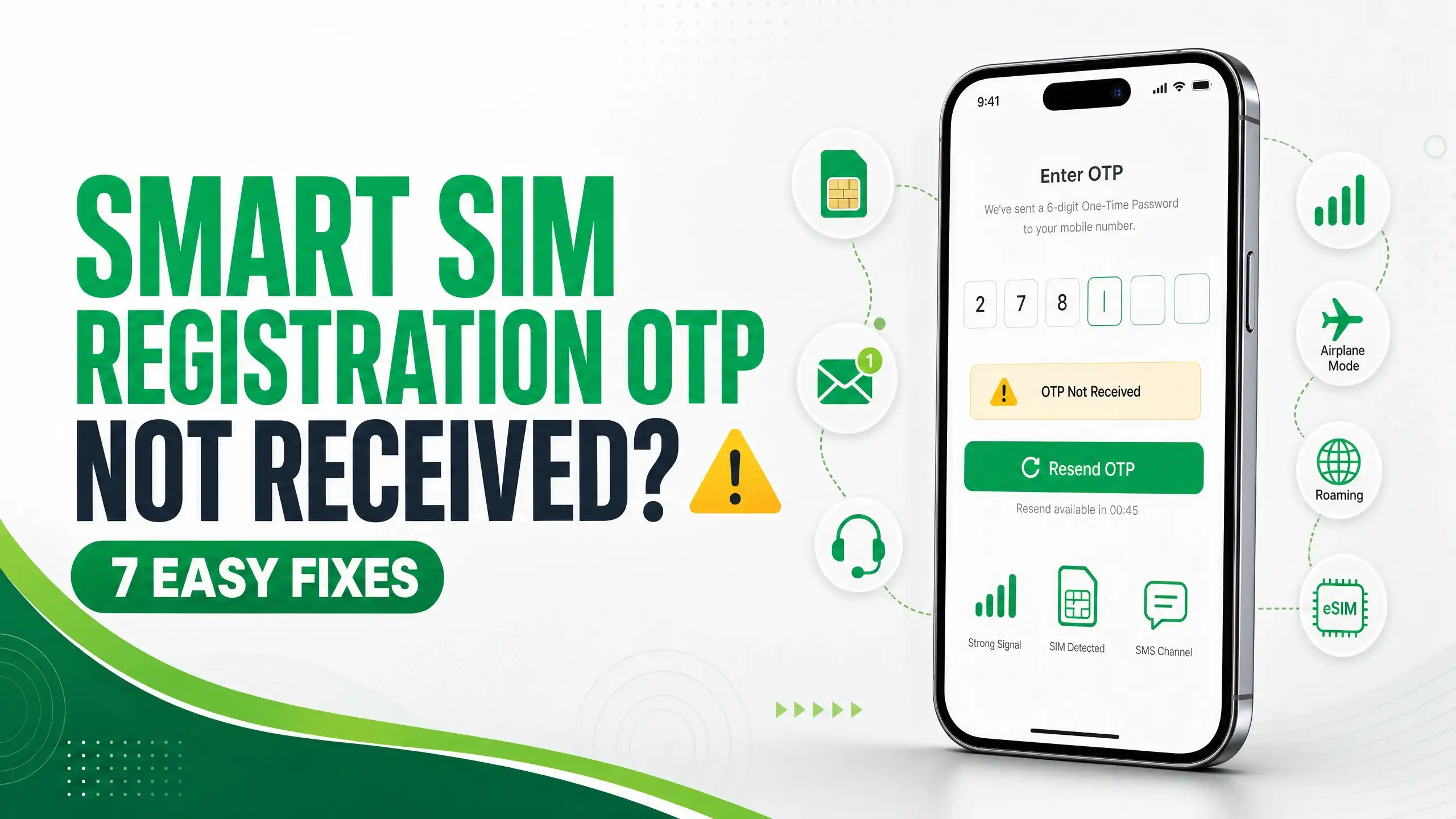
Not getting your OTP during Smart SIM registration is one of the most common problems users face in the Philippines. The good news is that most cases have a simple fix. If your OTP is delayed or missing, try turning on Airplane Mode for ten seconds, check your signal strength, confirm your number format is correct, and make sure your SMS inbox is not full. If none of these work, the problem might be on Smart’s end, not your phone, and fix seven below explains what to do next.
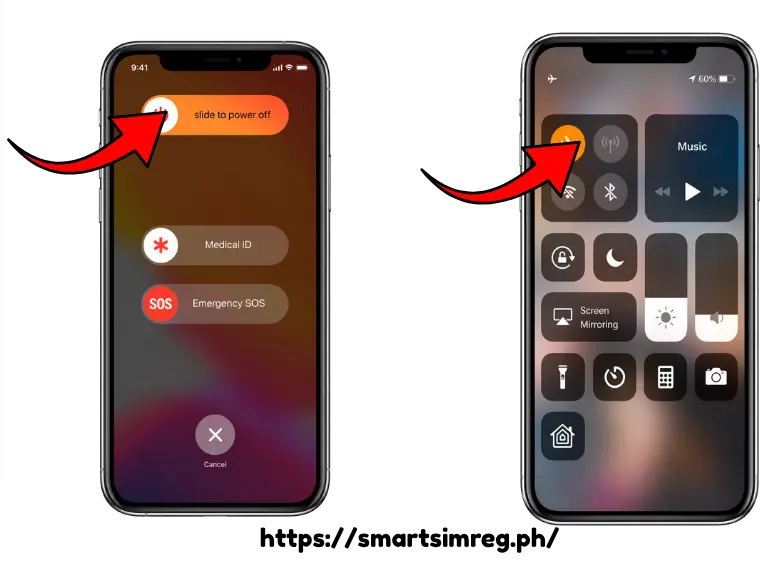
Restart Your Phone or Toggle Airplane Mode
This is the fastest fix and it solves the problem more often than people expect. Turn on Airplane Mode, wait ten seconds, then turn it off again. This forces your phone to reconnect to the Smart network and often clears whatever was blocking the OTP. If that does not help, a full restart does the same job in a slightly slower way.
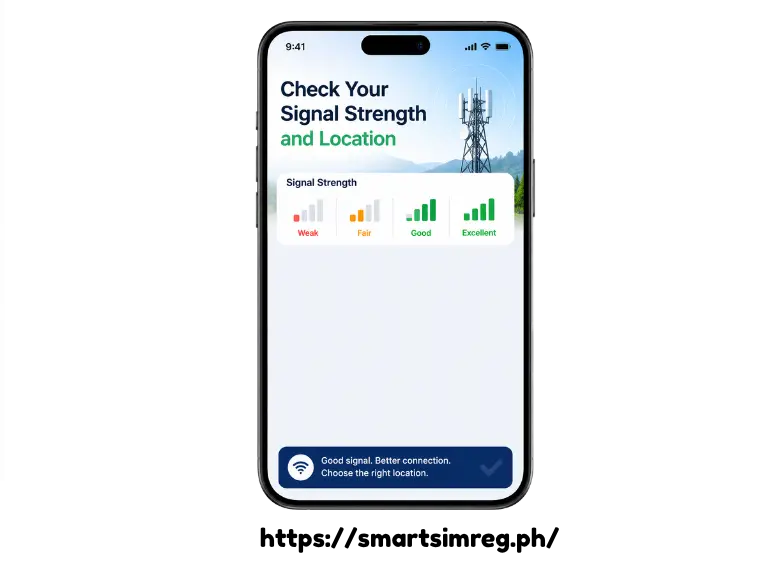
Check Your Signal Strength and Location
A weak signal is one of the biggest reasons OTP messages never arrive. Thick concrete walls, basements, and remote areas can all block the signal needed to deliver a text message. Try moving to a more open space or near a window and request the OTP again once you see full bars.
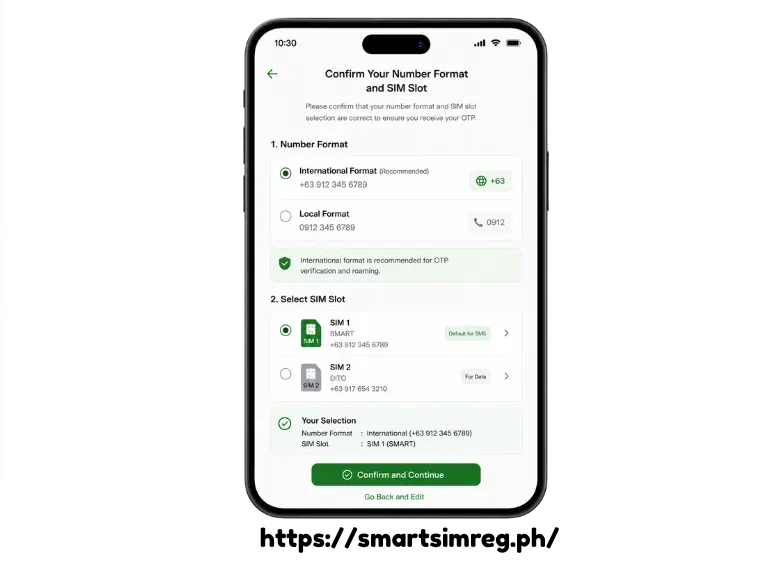
Confirm Your Number Format and SIM Slot
Some registration systems only accept a specific number format, so make sure you are entering your number the way the form asks for it, either starting with 09 or with the country code +63. If you use a dual SIM phone, check that your Smart line is set as the active SIM for receiving SMS messages, since phones sometimes default to the wrong slot without you noticing.
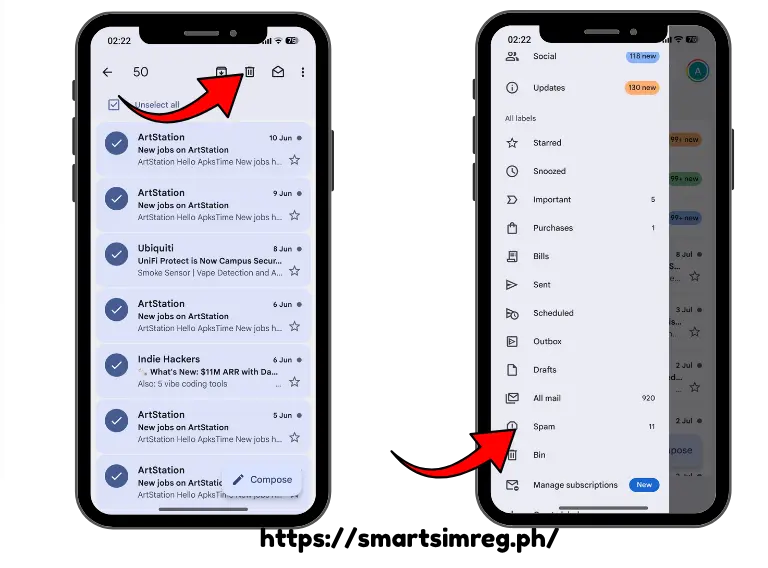
Clear Your Inbox and Check for Blocked Senders
A full SMS inbox can quietly stop new messages, including your OTP, from coming through. Delete a few old messages to free up space. It is also worth checking your phone’s blocked senders list and any spam filter apps you have installed, since these can silently filter out messages from short codes, which is exactly how OTP texts are usually sent.
If You Are Using an eSIM, Give It More Time
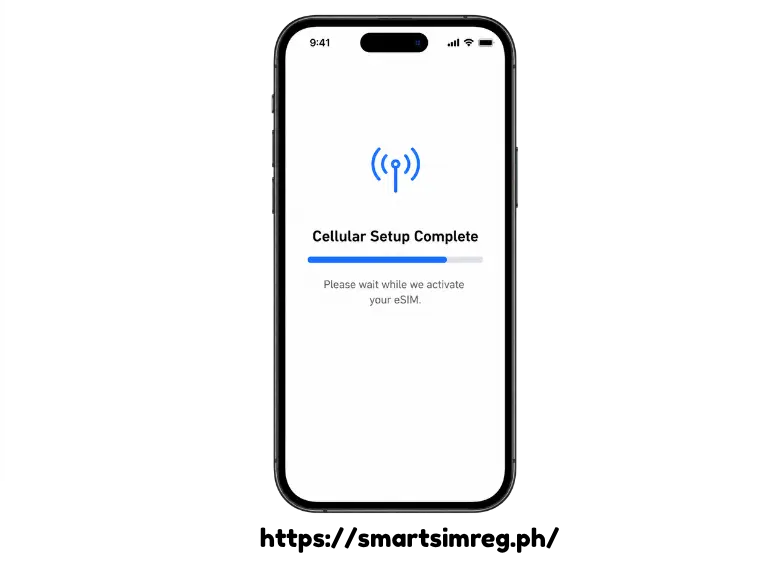
eSIM registration works a little differently from a physical SIM. After scanning your activation QR code, it can take anywhere from a few minutes to a few hours for your number to fully register on the network, especially if you are porting from a physical SIM. During this window, OTP messages may simply not go through yet. Go to your phone’s network settings and confirm the eSIM is enabled and selected as your active line for SMS before trying again.
Enable Roaming if You Are Outside the Philippines
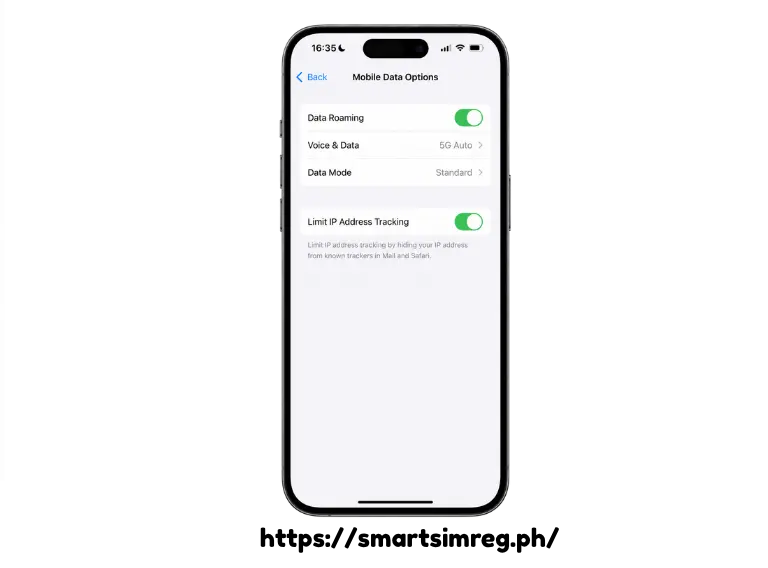
If you are trying to register your Smart SIM while abroad, roaming is very likely the reason your OTP never arrives. Open your phone’s network settings, turn on data roaming, and confirm that international roaming is active on your Smart account. Without this setting turned on, OTP messages sent by Smart simply cannot reach your phone. If you are registering as a returning OFW or frequent traveler, our guide on Smart SIM registration for tourists and foreign visitors covers a few related document requirements worth checking too.
Call Smart Support and Ask for Escalation
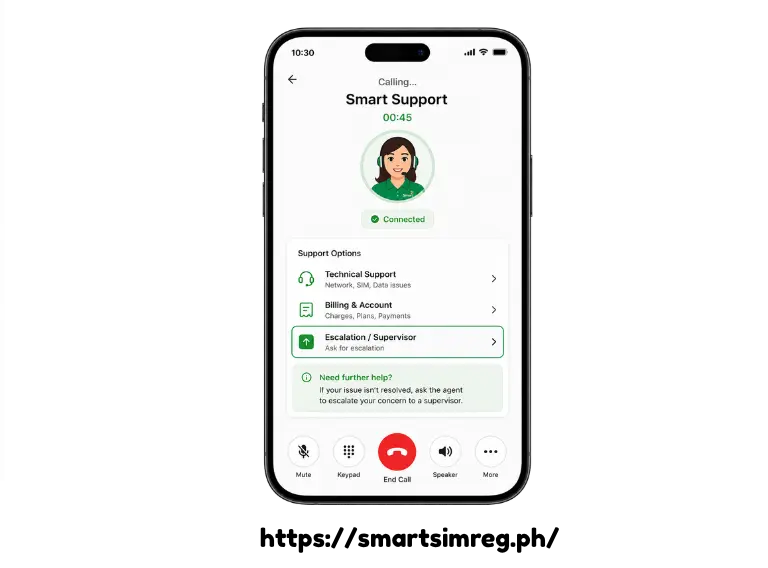
Sometimes the issue really is not your phone at all. In one real case shared online, a user’s number showed no signal for almost two days despite trying every device fix available. A first call to Smart support went nowhere because the request was never properly passed to the right internal team. A second call, where the user specifically asked for the issue to be escalated, fixed the problem within fifteen minutes. If you have tried everything above and still have no luck, call Smart support and be clear that your case needs to be escalated, not just logged. You can find official contact steps on Smart’s official help page.
Bonus: Viewing OTP Through a Smart Bro Router
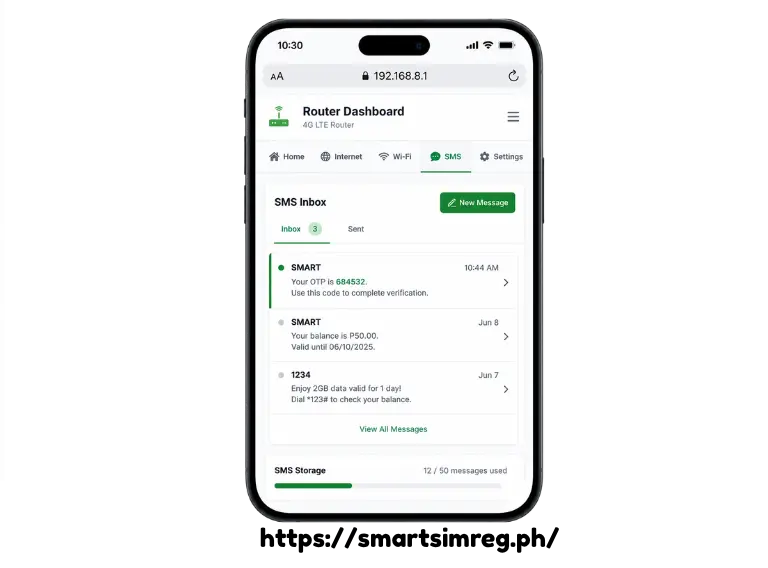
If you are registering a Smart Bro Wi-Fi device rather than a regular SIM, you can actually view the OTP directly through the router itself. Connect your device to the Smart Bro Wi-Fi signal, open a browser, and go to 192.168.1.1. Log in with your router’s username and password, then check the SMS tab, where the OTP message will appear.